
Animate with Fredo6 Animator
The Animation guide moves the camera from one SketchUp scene to the next. With Fredo6 Animator the model itself moves: objects slide, turn and grow, objects on tags appear one after the other, and the camera flies along a path of its own. Rayscaper renders the clips you make with Animator, with everything that moves in them.
This guide goes through it with the example scene of the video below: a villa garden with a pool, where a float drifts across the water, a parasol opens, a garden bed fills with plants and the sliding door opens while the camera flies towards the house.
The clip in Animator’s editor in SketchUp, rendered with Rayscaper: 241 frames at 1920x1080.
What You Need
Section titled “What You Need”- SketchUp with Rayscaper.
- Fredo6 Animator, with LibFredo6 and SketchUcation Tools, from SketchUcation. Animator checks its license through SketchUcation Tools: activate your license or its trial in Animator.
- The example scene, if you want to follow along. The clip is stored in the model, so it opens with the scene.
Download rayscaper-animator.skp (8.8 MB)
The scene works with the free version of Rayscaper, which renders the frames at up to 1280 pixels on the longest edge, with a watermark.
Step 1: Look at the Clip
Section titled “Step 1: Look at the Clip”- Open
rayscaper-animator.skpin SketchUp. - Go to Tools > Fredo6 Collection > Animator > Clip Editor. Animator opens its editor over the viewport with the clip of the scene, Film 1, 10 seconds long.
- Click Play the Clip animation in Animator’s toolbar to play it. Hover over a button to see what it does.
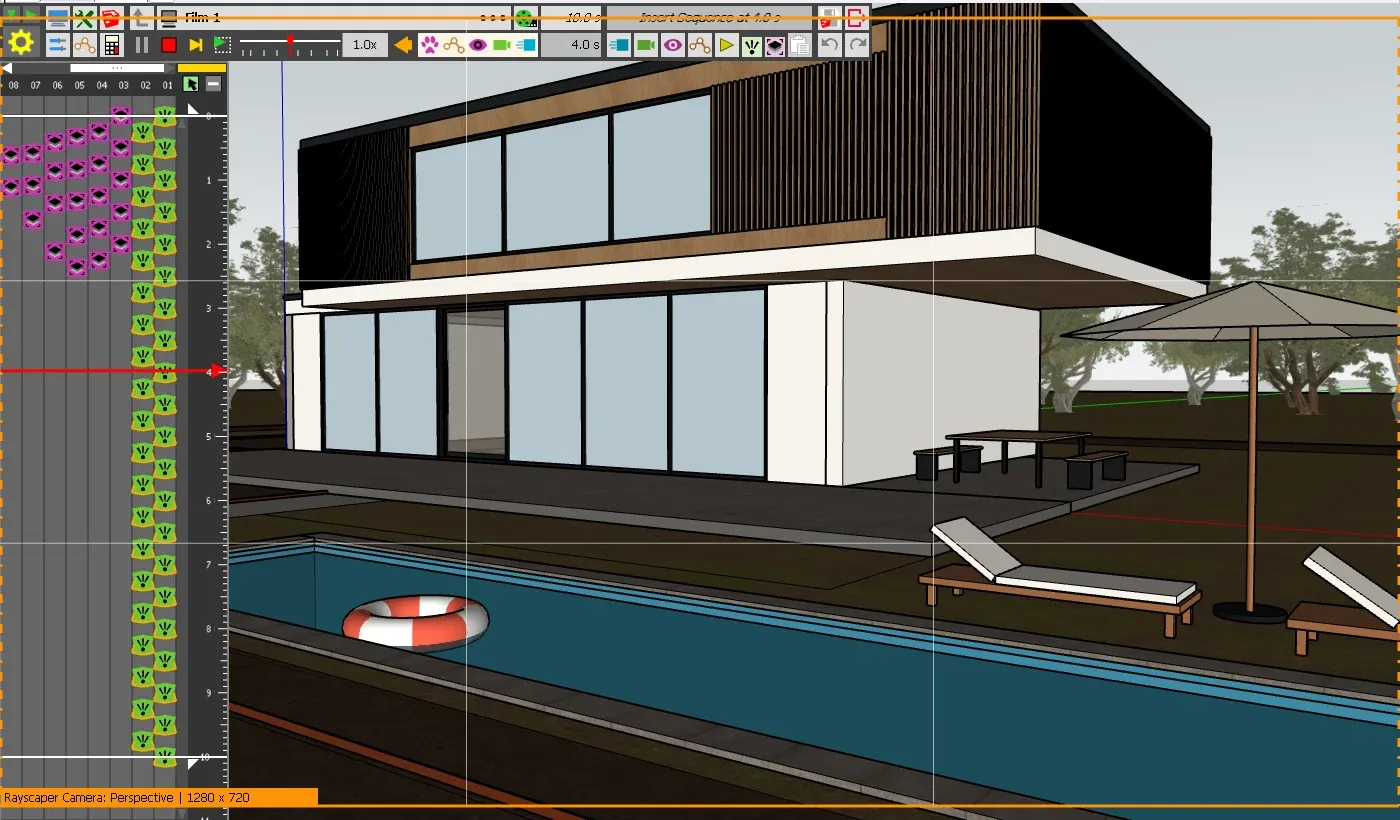
Animator’s Clip Editor at 4 seconds. The timeline runs from top to bottom, one track per column: the camera views in green, the tag changes in pink.
The clip has three kinds of elements. Each starts at a time in the clip and lasts for a while:
| Element | What it does | When |
|---|---|---|
| Translation 1 | The Pool Float drifts 5 m along the pool | 0-10 s |
| Rotation 1 | The Pool Float turns 120° around its center | 0-10 s |
| Scaling 1 | The Parasol Canopy opens: it grows 12.5 times wider and gets flatter | 0.6-3.2 s |
| Translation 2 | The Sliding Door slides 1.95 m open | 6.0-8.8 s |
| 41 camera views | The camera flies from across the pool to the door, one view every quarter second | 0-10 s |
| 28 tag changes | The plants on the tags Bed 01 to Bed 16 and Bloom 01 to Bloom 16 appear row by row, some rows at the same time: the garden bed fills and the flower strip blooms | 0.25-2.4 s |
Close the editor with its exit button when you’re done. Animator puts the model back as it was at the start of the clip.
Step 2: Make Your Own Clip
Section titled “Step 2: Make Your Own Clip”To render the clip of the example, skip to Step 3. This step shows how its elements were made, so you can do the same in your own model. For everything else Animator can do, see its tutorial.
- Save the model. Animator doesn’t work on a new model that was never saved.
- Prepare the objects. Animator moves groups and components, so make a group or component of everything that moves: the float, the canopy of the parasol, the door. Give the groups and components that should appear together a tag of their own, like the plants of the garden bed in the example, with one tag per row.
- Set up the clip. Open Tools > Fredo6 Collection > Animator > Clip Editor. For a model without clips, it offers to create one: give it a name and a duration.
- Move objects. Click the time in the timeline where the movement starts, then Insert a Unit Movement in the timeline. Pick the kind of movement: a translation moves the object, a rotation turns it and a scaling resizes it. Click the object and drag to set how far it goes, or type the value. Click Save the Sequence and Exit, then drag the start and end of the movement in the timeline to set when it happens.
- Move the camera. Go to a time in the timeline, set up the view in SketchUp, and click Insert the Current View in the timeline. Do this for each view the camera passes. Animator moves the camera between two views along a Linear, Circular or Bezier Camera Path. A Bezier path curves through the views; play the clip, and move or add views where the camera feels abrupt.
- Show and hide tags. Go to a time, turn tags on or off in SketchUp’s Tags panel, and click Insert Layer Visibility taken from Current View in the timeline. From that time on, the tags are as you set them.
- Save. Exit the editor and answer Yes to Save all data in the model, then save the model in SketchUp. The
clip is stored in the model: send the
.skpand the clip goes with it.
Rayscaper follows Animator in the viewport while you work. Click Start Render and play the clip, and the render follows the objects, the tags and the camera. It’s a quick way to see the materials and the light as the clip plays, before you render every frame.
Step 3: Render a Preview
Section titled “Step 3: Render a Preview”Render a small, fast version first: it shows the timing and the camera path, and costs a few minutes.
- Save the model and close Animator’s editor. Rayscaper only renders clips of a saved model, with the editor closed.
- Click Start Render, and go to File > Render Animation in Rayscaper’s menu.
- Under Animate, choose Animator Clip. For a model with clips and no scenes to animate, it’s already chosen.
- Pick the clip, Film 1, the Output Directory and the Frames Per Second. At 24 frames per second, the 10 seconds of the example are 241 frames: 10 times 24, plus the first frame.
- Under Render Overrides, check Override Resolution and set 640 by 360, and check Override Samples/px and set 16.
- Click Start Rendering.
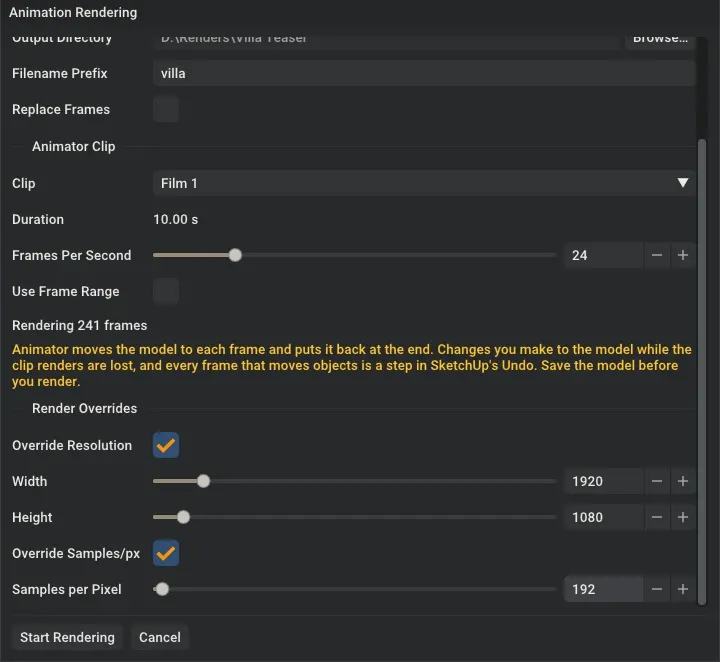
The Animation Rendering dialog with the clip of the example, set up for the final render.
Animator moves the model to each frame in SketchUp, and Rayscaper renders and saves it. When the render ends, also
when you stop it, Animator puts the model back as it was. To render only part of the clip, check Use Frame Range
and set the Start Frame and End Frame. The dialog counts frames from 1, while the file names count from 0:
frame 1 is saved as animation_0000.png.
Step 4: Render the Final Frames
Section titled “Step 4: Render the Final Frames”When the preview looks right, set the overrides to the size of your video, like 1920 by 1080, and enough samples for a clean image: the example used 192 samples per pixel. Render to a new output directory, or check Replace Frames: the dialog warns when the directory already has frames.
The 241 frames of the example took about two hours on an NVIDIA RTX 3080, half a minute a frame. Render overnight, and test a few frames of the busiest moment with Use Frame Range to know how long a frame takes.
Step 5: Make the Video
Section titled “Step 5: Make the Video”Rayscaper saves every frame as a numbered PNG: animation_0000.png, animation_0001.png and so on. Combine them
into a video with DaVinci Resolve,
Adobe Premiere or FFmpeg. In the output
directory, with FFmpeg:
ffmpeg -framerate 24 -i animation_%04d.png -c:v libx264 -pix_fmt yuv420p -crf 18 animation.mp4Use the frame rate you rendered with, and the file name prefix of the dialog if you changed it.
Troubleshooting
Section titled “Troubleshooting”The messages of the Animation Rendering dialog, like “Close Animator’s editor to render a clip.”, are explained in the Animation guide. Also:
- A clip that moves the camera doesn’t render. Lock Camera is on in Rayscaper, and the render wouldn’t follow the camera of the clip. Turn Lock Camera off on the Rayscaper toolbar or in Extensions > Rayscaper.