
Licensing FAQ
Is there a free version?
Section titled “Is there a free version?”Yes. You can use Rayscaper without a license, but with these limitations:
- Renders include a watermark.
- Renders cannot be used commercially.
- Renders made inside SketchUp, including saved images and animation frames, are limited to 1280 pixels on the longest edge. Smaller images keep their requested size, and larger images scale proportionally.
- EXR export requires a license.
You can still edit scenes and render animations without a time or frame limit. The camera and animation settings keep the resolution you request; activating a license restores larger output automatically. Standalone rendering is exempt from the SketchUp resolution limit.
How much does a license cost?
Section titled “How much does a license cost?”A Rayscaper license costs $99, or $74.99 for SketchUcation Premium members. It’s a one-time payment for a perpetual license, with one year of updates included.
The license is for one person, who may use it on up to 3 computers at the same time. See the End User License Agreement for the full terms.
Can I get a refund?
Section titled “Can I get a refund?”Yes. If Rayscaper isn’t right for you, email [email protected] within 14 days of your purchase for a full refund.
How can I get a Rayscaper license?
Section titled “How can I get a Rayscaper license?”To use Rayscaper without limitations, you need to purchase and activate a license.
Step 1: Open the license dialog
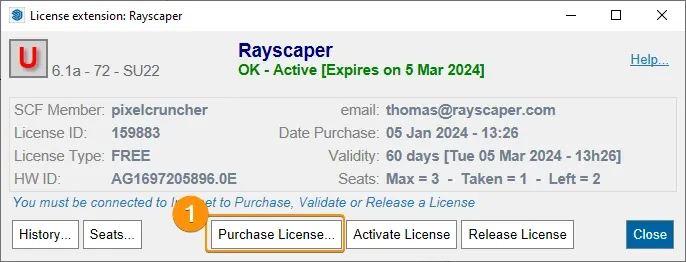
Section titled “Step 1: Open the license dialog”Click Show License Dialog on the Rayscaper toolbar, or choose Extensions > Rayscaper > Show License Dialog, to open the SketchUcation license dialog. The button and the menu item only exist when the SketchUcation Tools extension is installed.

In the dialog, click Purchase License… to open the SketchUcation store.
Step 2: Complete your purchase
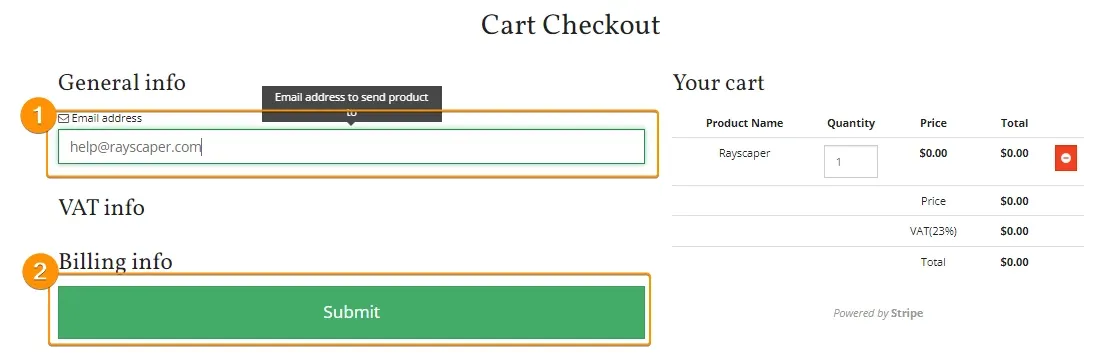
Section titled “Step 2: Complete your purchase”On the SketchUcation page, select the number of licenses you need and complete your purchase.

Enter your email address and confirm your order.
Step 3: Download your license file
Section titled “Step 3: Download your license file”After purchase, you will receive an email with your license. You can also download it directly from your SketchUcation licenses page.

Step 4: Activate Rayscaper
Section titled “Step 4: Activate Rayscaper”The license file has the extension .scflicense. Open the license dialog again, select your license file, and Rayscaper will activate automatically.
How do I release a license seat?
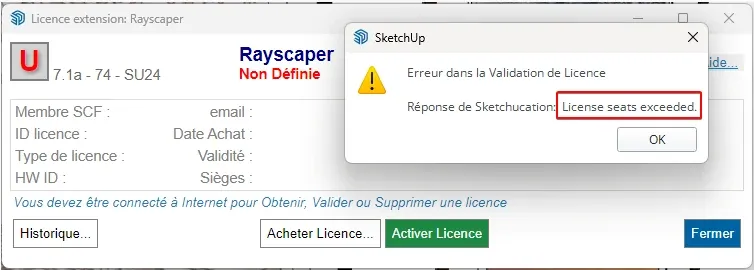
Section titled “How do I release a license seat?”If you see the error “License seats exceeded”, all your license seats are already in use on other computers. You need to release a seat before you can activate Rayscaper on a new machine.
Step 1: Go to SketchUcation
Section titled “Step 1: Go to SketchUcation”Open www.sketchucation.com and log in with the account that owns your license.
Step 2: Open your licenses page
Section titled “Step 2: Open your licenses page”In the top menu, click PluginStore, then select My Licenses.

Step 3: Release the seat
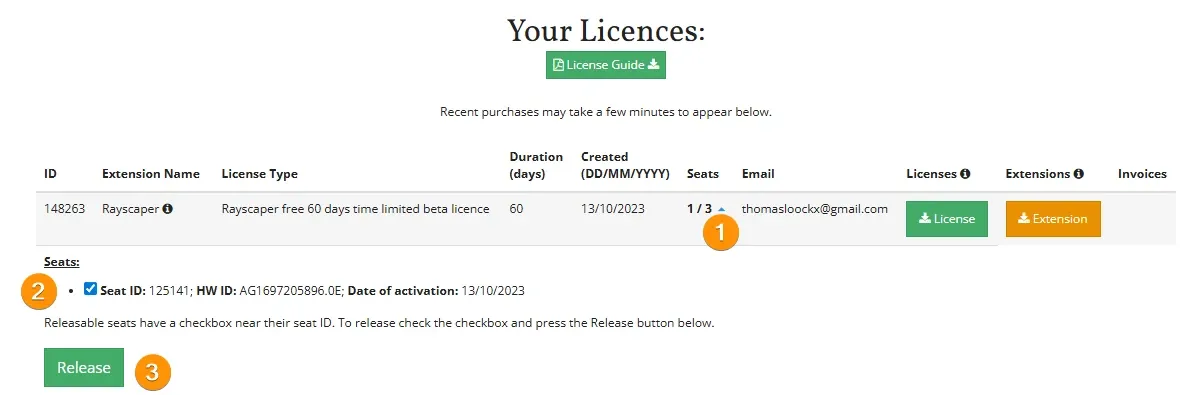
Section titled “Step 3: Release the seat”On the “Your Licences” page:
- Find your Rayscaper license and click the arrow next to Seats to expand the details
- Check the box next to the seat you want to release
- Click Release
Step 4: Activate on your new computer
Section titled “Step 4: Activate on your new computer”Your seat is now available. You can activate Rayscaper on your new computer using your license file.