
Car Rendering
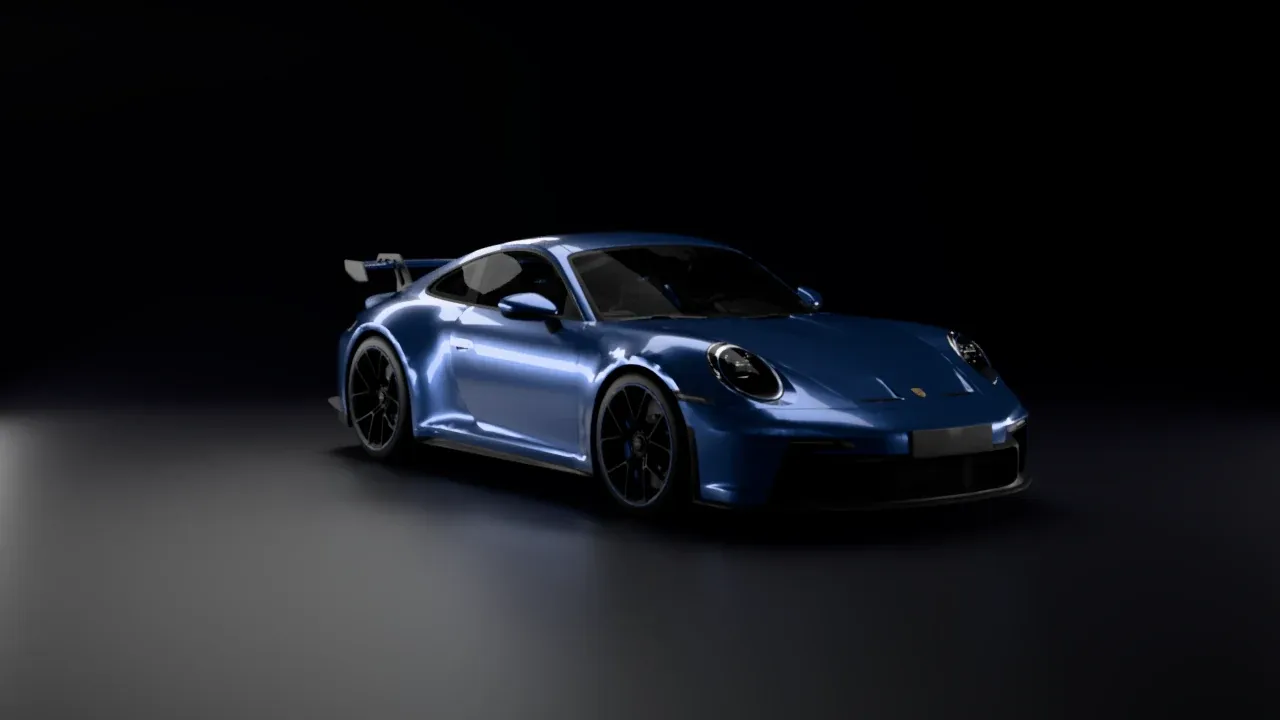
A car is one of the hardest things to render well. Its paint is a mirror with color under it, so a car shows its surroundings more than itself: the shape of the body is drawn by what it reflects. This guide takes two cars from the 3D Warehouse through the shots you know from car photography:
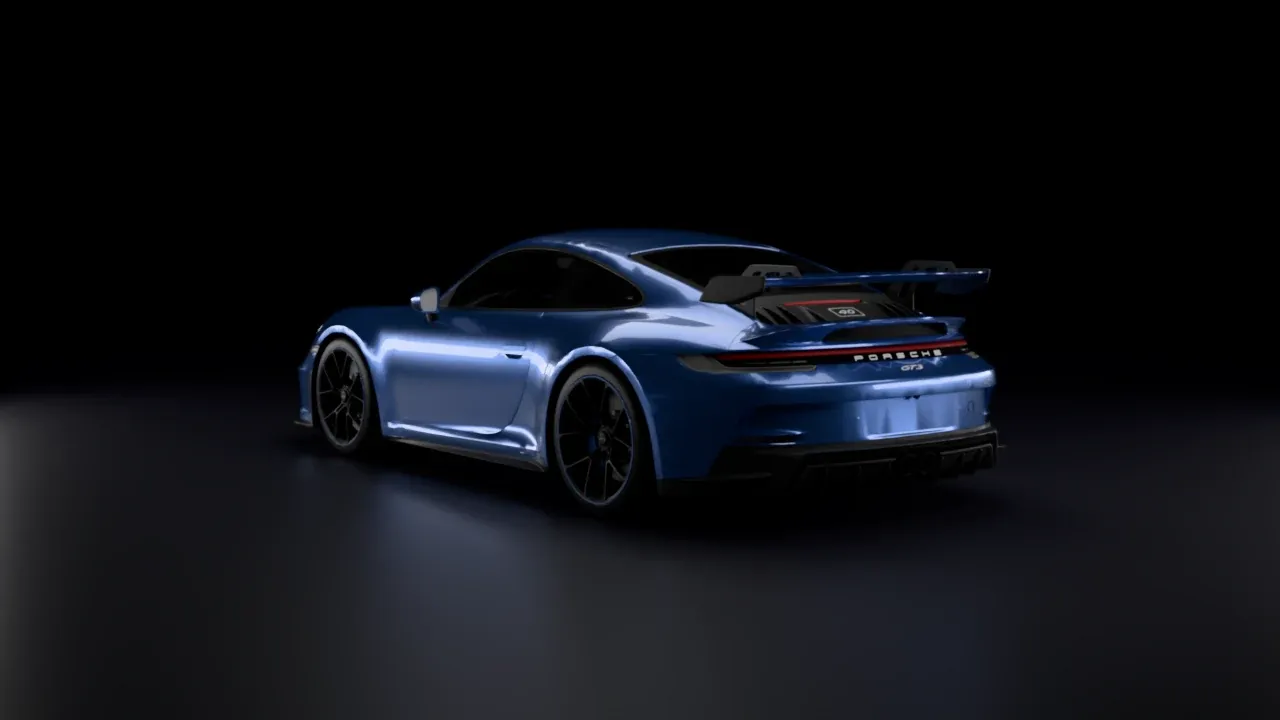
- a studio shot, where large softboxes draw long highlights along the body,
- an outdoor daylight shot, under a sky with a low sun,
- a night shot, on a wet road lit by the car’s own headlights,
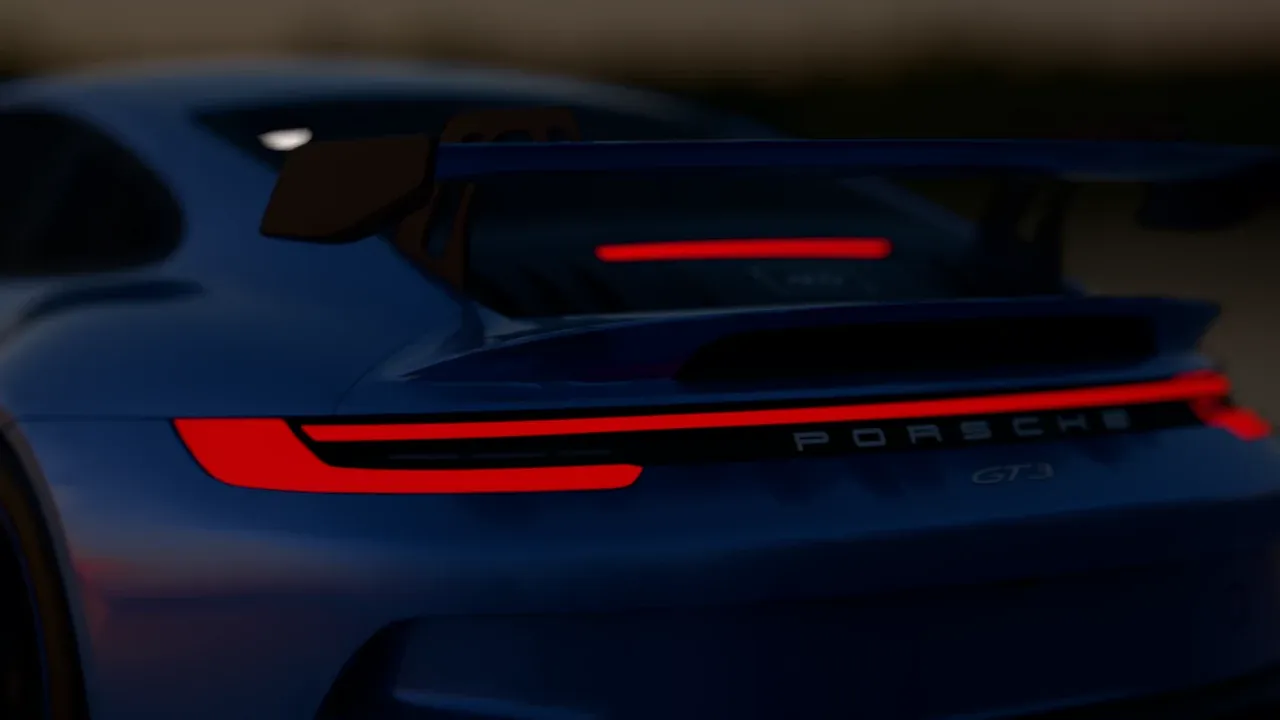
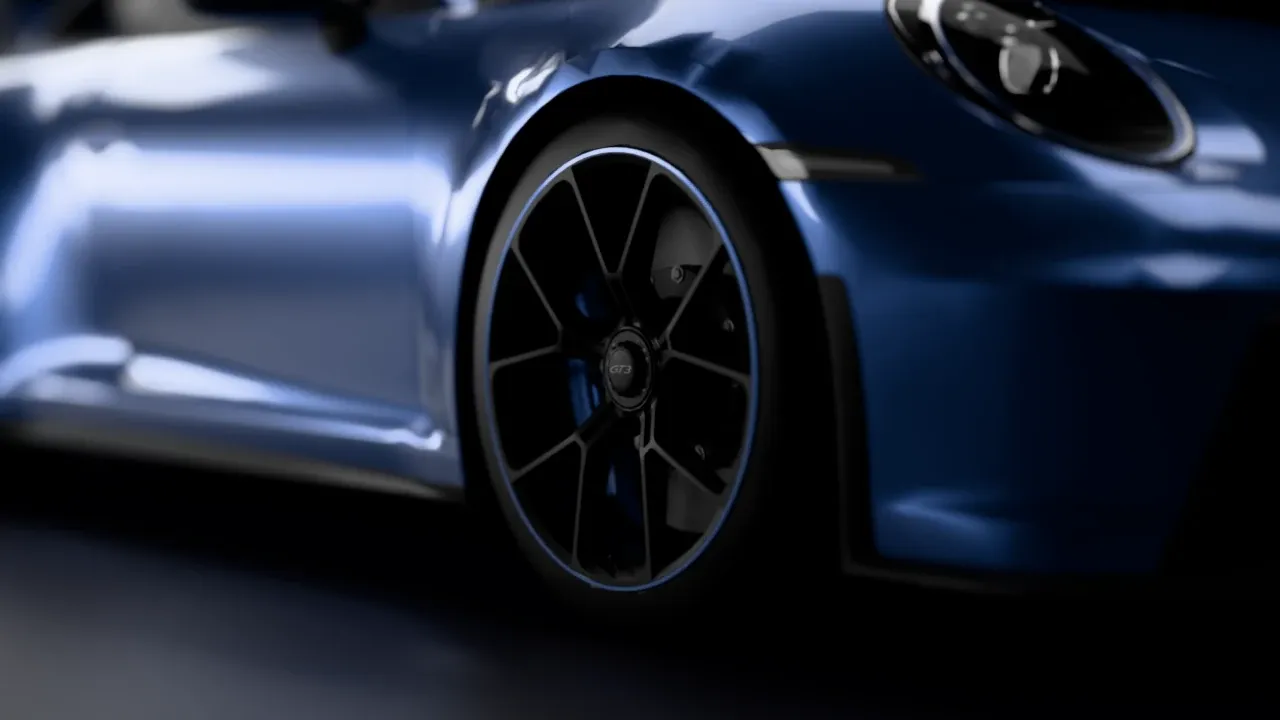
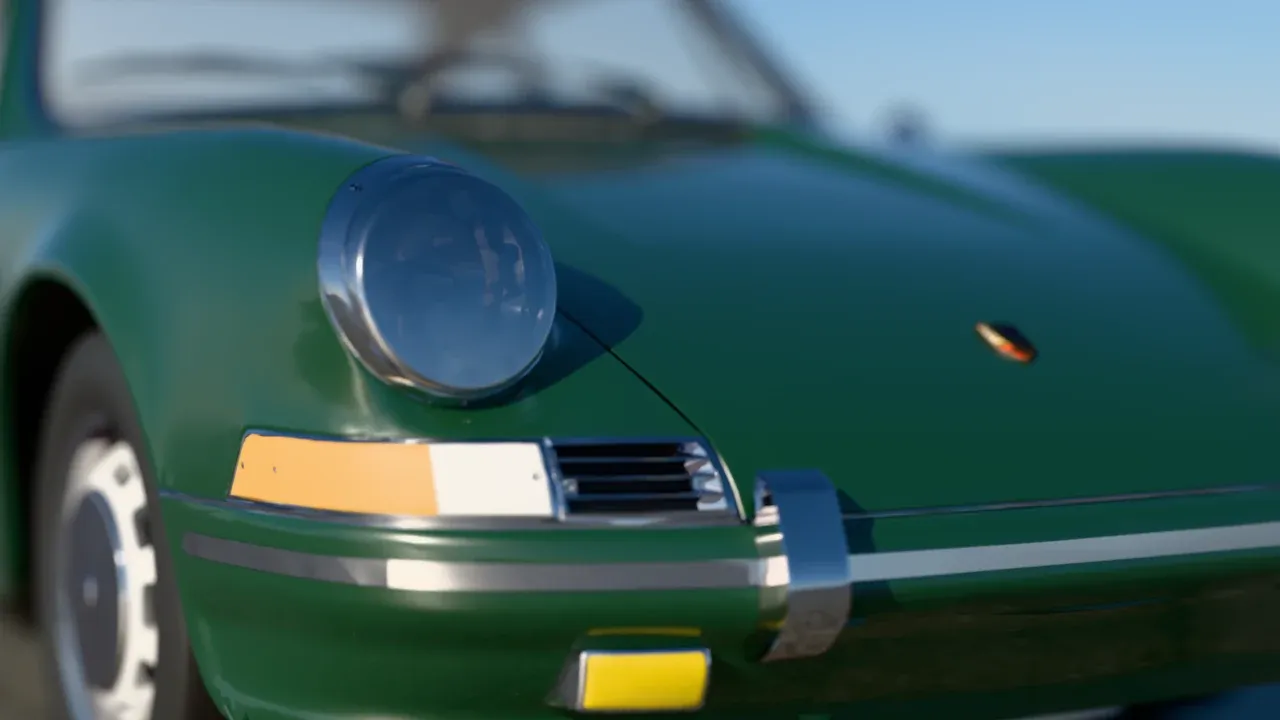
- details: a headlight, a tail light and a wheel, close up with depth of field.
The cars are the 2022 Porsche 911 GT3 by Ghøst and the 1964 Porsche 911 by Cartoon, from the 3D Warehouse (see Credits). Both are good models, with separate materials for the paint, the glass, the chrome and the lamps. That matters more than the number of polygons: you can only give the lamps their own glow when they have their own material. Look at the reflections when you pick a model, too: a glossy paint shows every dent in the mesh. The flank of the GT3 reflects a little unevenly, and the engine lid of the 1964 911 so much that this guide shows it from the front.
Prepare the Car
Section titled “Prepare the Car”-
Import the car as a component. Choose File > Import, or open the model and copy it into yours. As a component you can move and rotate the whole car in one go.
-
Check its size. Use the Tape Measure tool on the height or the length. Models on the 3D Warehouse are often at the wrong scale: the GT3 came in 2.55 times too large, as a car of 3.3 m high. A 911 is 4.5 m long and 1.28 m high; scale the component until it matches the real car. Rayscaper renders at the scale of the model, so a car at the wrong size gets the depth of field, the light falloff and the size of the paint flakes of a toy or a truck.
-
Clean up. Look for things that don’t belong to the car: the 1964 911 came with a loose face beside it, the GT3 with a reference image. Delete them.
-
Put it on a ground. Rayscaper has no ground of its own, so model one: a large rectangle under the wheels for an outdoor shot, a cyclorama for a studio (see The Studio Shot). Place the car with its wheels exactly on it, else it floats or sinks in.
Car Materials
Section titled “Car Materials”Open the material editor with Material Pick (Ctrl+M) and click each part of the car in the render. These are the materials that make a car:
| Part | Material type | Settings |
|---|---|---|
| Paint | Car Paint | Finish Solid for a classic paint, Metallic for a modern one |
| Windows | Glass | A grey color, for tinted glass |
| Headlight lens | Glass | A white color |
| Chrome | Metal, Chrome | Roughness about 0.03, for polished chrome |
| Headlight reflector | Metal, Chrome | Roughness about 0.1 |
| Tires | Standard | Almost black, roughness about 0.7 |
| Lamps that glow | Their own material with Emission | See Lamps |
Car Paint
Section titled “Car Paint”The Car Paint type is made for car bodies: a base coat in the color of the paint, metallic flakes in it, and a clear coat on top that reflects like glass. Pick a Finish:
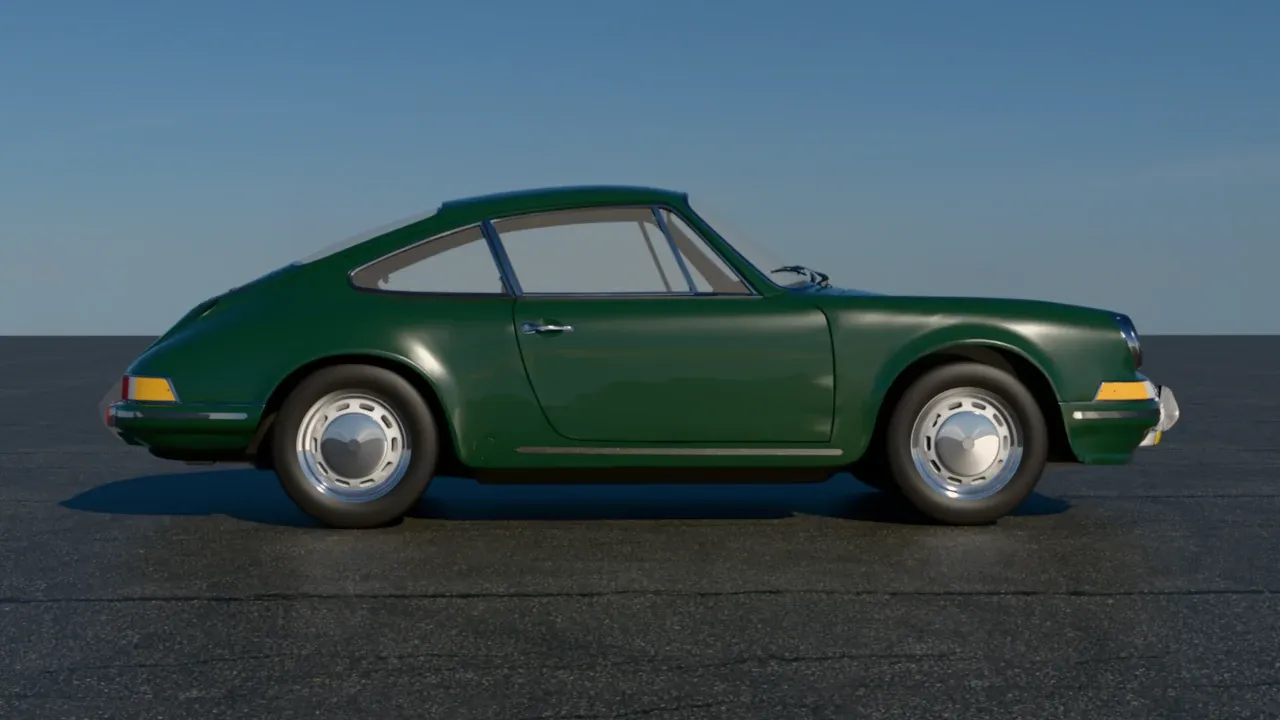
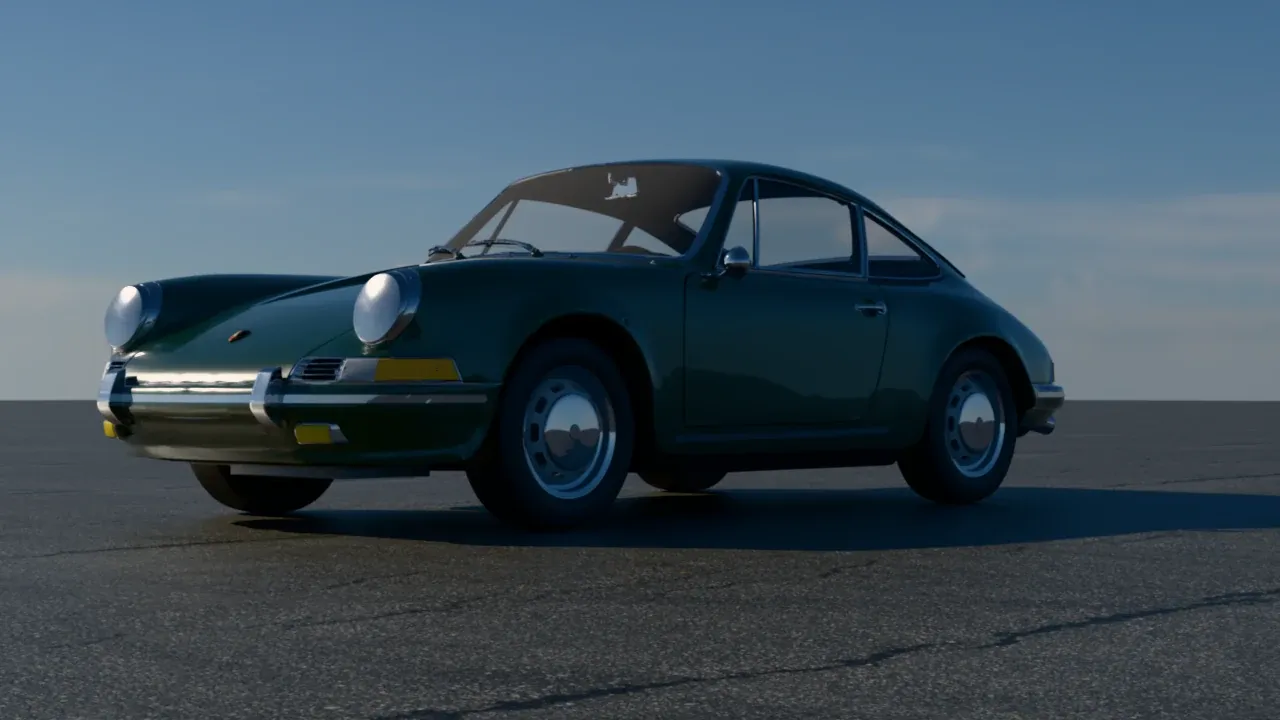
- Solid: no flakes, like the paint of the green 1964 911.
- Metallic: silver flakes that sparkle up close and give the paint its bright highlights from a distance, like the blue GT3.
- Pearl, Sparkle and Satin for pearlescent paints, coarse flakes and the matte finish of a wrap.
Pick the Color darker than you’d think. A paint color of 5% to 20% looks like a deep blue or green in the render, because the clear coat adds its reflection on top. The GT3’s blue is (0.05, 0.09, 0.22) in linear RGB, the 911’s green (0.012, 0.045, 0.022).
Under Advanced, Clear Coat has the Orange Peel: the slight waviness of real paint. Keep it low (0.3 is the default), or the reflections look wobbly.
To make a lamp glow, turn on Emission on the material of its LED, bulb or lens (the GT3 has DRLs for the
daytime running lights and BrakeLights for the tail lights):
- White lamps: Emission mode Temperature, 6000 K, power about 20.
- Red and orange lamps: Emission mode Color, pure red (255, 0, 0) or orange (255, 90, 0), power 0.5 to 1. Give the material a dark red base color, like the plastic of a real tail light.
- Turn on Fake Emission, so the lamp glows without lighting the scene, which renders faster and cleaner, and Two Sided, since the faces of a lamp in a model often point inwards.
The lamps of a car are too small to light the road. In the night shots, a spotlight in front of each headlight throws the beam, see The Night Shot.
The Studio Shot
Section titled “The Studio Shot”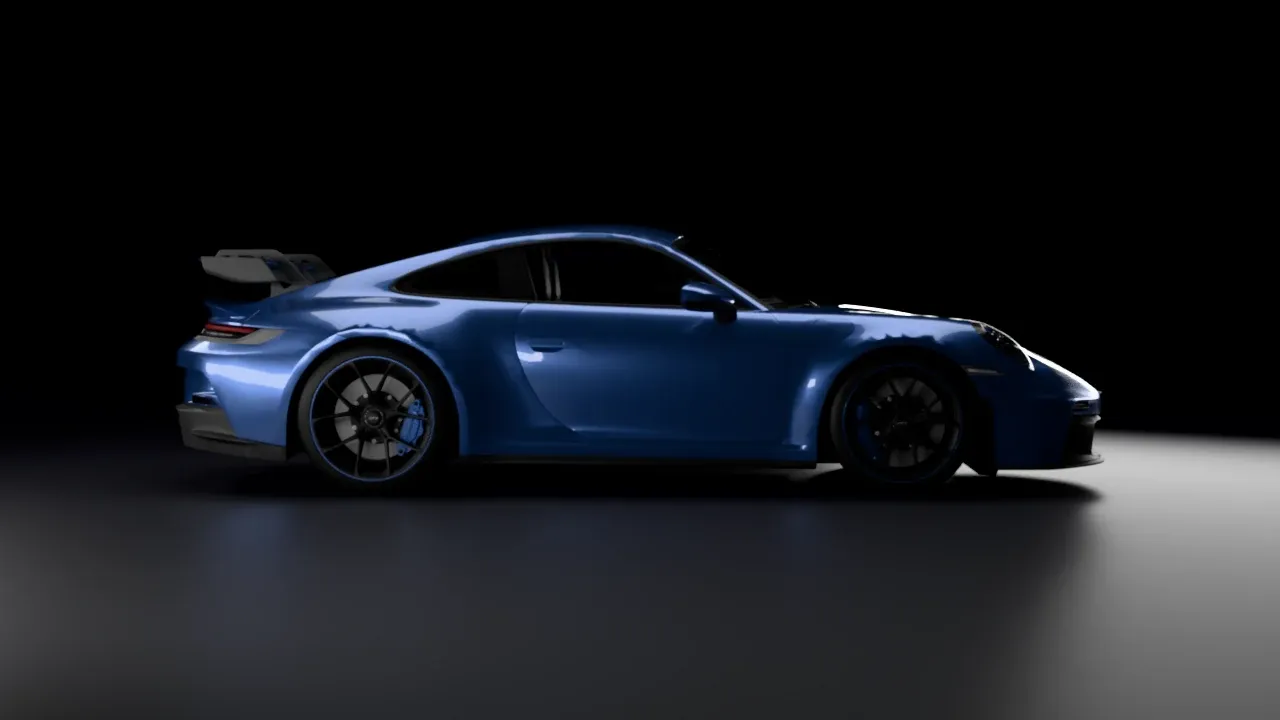
A studio shot puts the car in a room without corners, a cyclorama: the floor curves up into the back wall, so there is no horizon behind the car. The car’s highlights are reflections of large area lights, so where you put a light decides where a highlight lands on the body.
-
Build the cyclorama. Draw the profile of the floor curving into the wall (a quarter circle of about 3 m), extrude it to 30 m wide with Push/Pull, and soften the edges of the curve (Soften Edges in SketchUp) so it renders smooth.
-
Turn off the environment. In the Environment tab, turn the environment off: the studio is dark and only the lights you place light the car.
-
Make the backdrop dark and slightly glossy: a Standard material with a color of 4% and a roughness of 0.45. The car gets a soft reflection on the floor, and the backdrop fades to black behind it. A white cyclorama works too, for a high-key look, but shows less of the highlights.
-
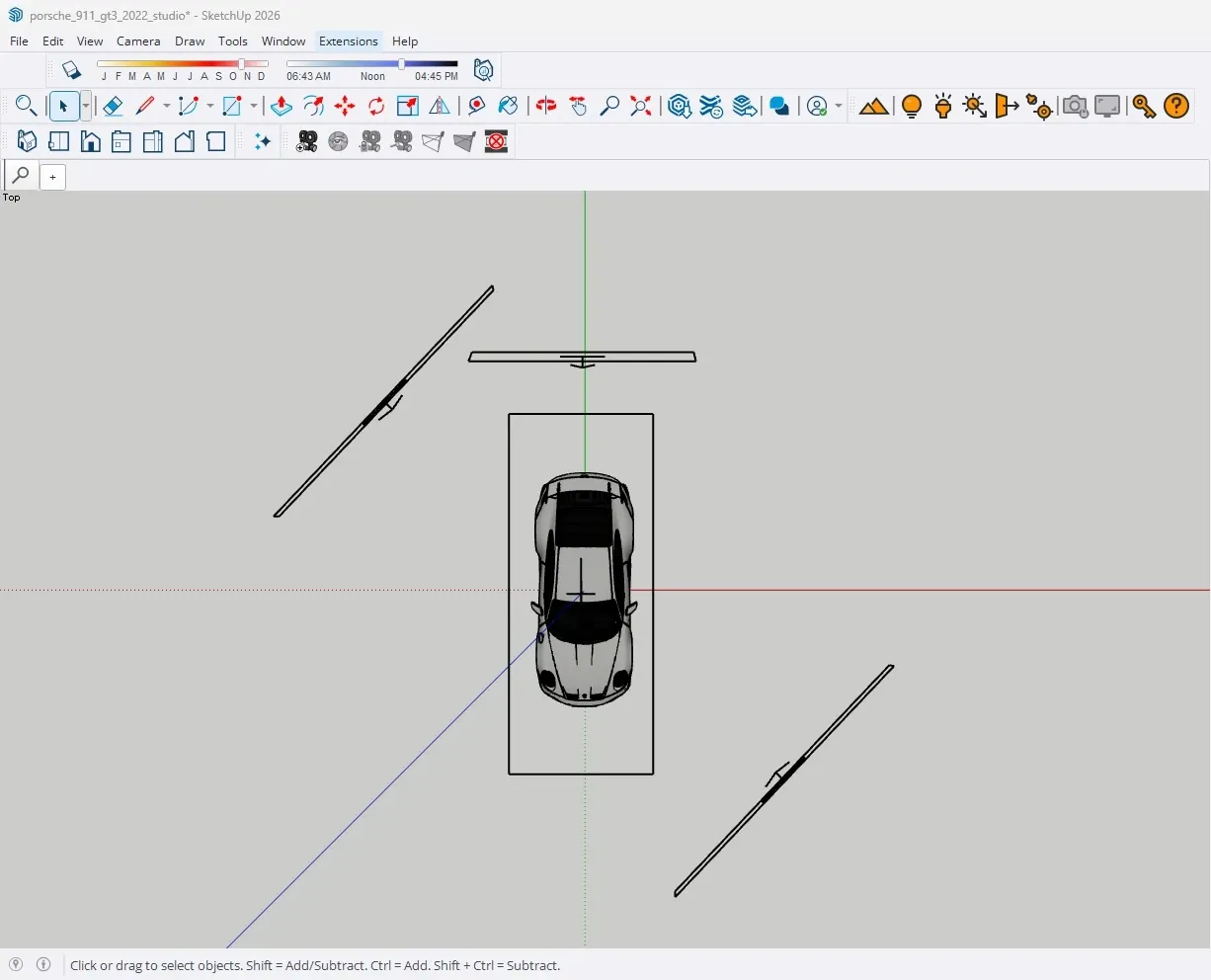
Place the lights. Use the Area Light tool on the Rayscaper toolbar:
- A softbox of 2.4 × 6 m, 4 m above the car and pointing down: the highlights on the hood, the roof and the trunk.
- A strip of 0.5 × 6 m, behind and beside the car at 1.1 m, aimed at it: the long line along the flank.
- A rim light of 4 × 0.6 m, behind the car at 2.6 m: lifts the roof line from the backdrop.
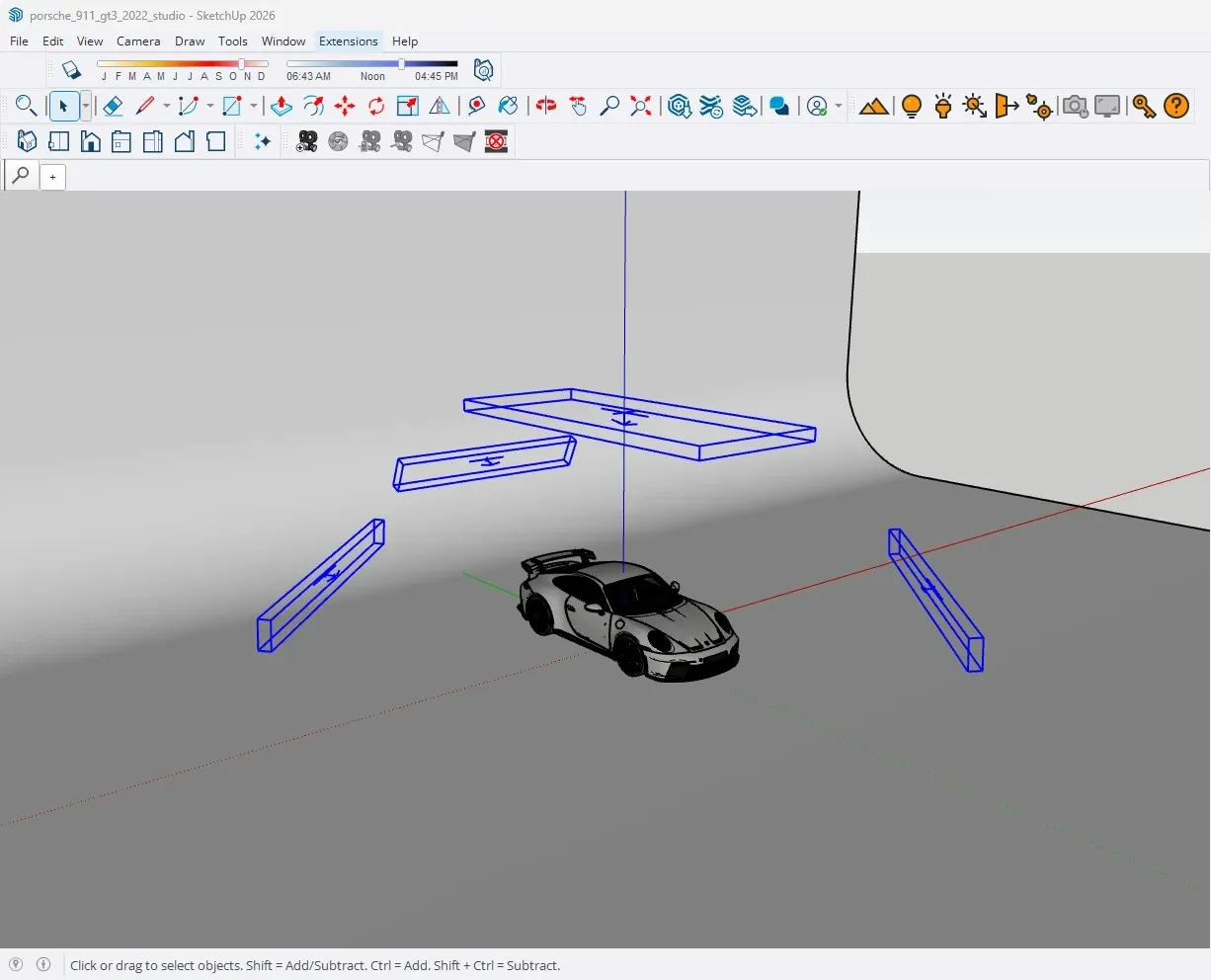
From above, the strips stand diagonally: Strip Left behind the car on the left, Strip Right in front of it on the right, so each draws a line along the flank for a camera on its side. The softbox is the rectangle around the car, the rim light the bar behind it (the car faces down in this view).
Give them a brightness of 150000 lm (60000 lm for the rim) and a white color.
-
Set the exposure by hand. Turn Auto Exposure off: the studio is mostly black, and auto exposure brightens it until the car is too light. With these lights an Exposure of 3.5 gives a dark, moody studio. Add a little Vignette (0.25).
The Daylight Shot
Section titled “The Daylight Shot”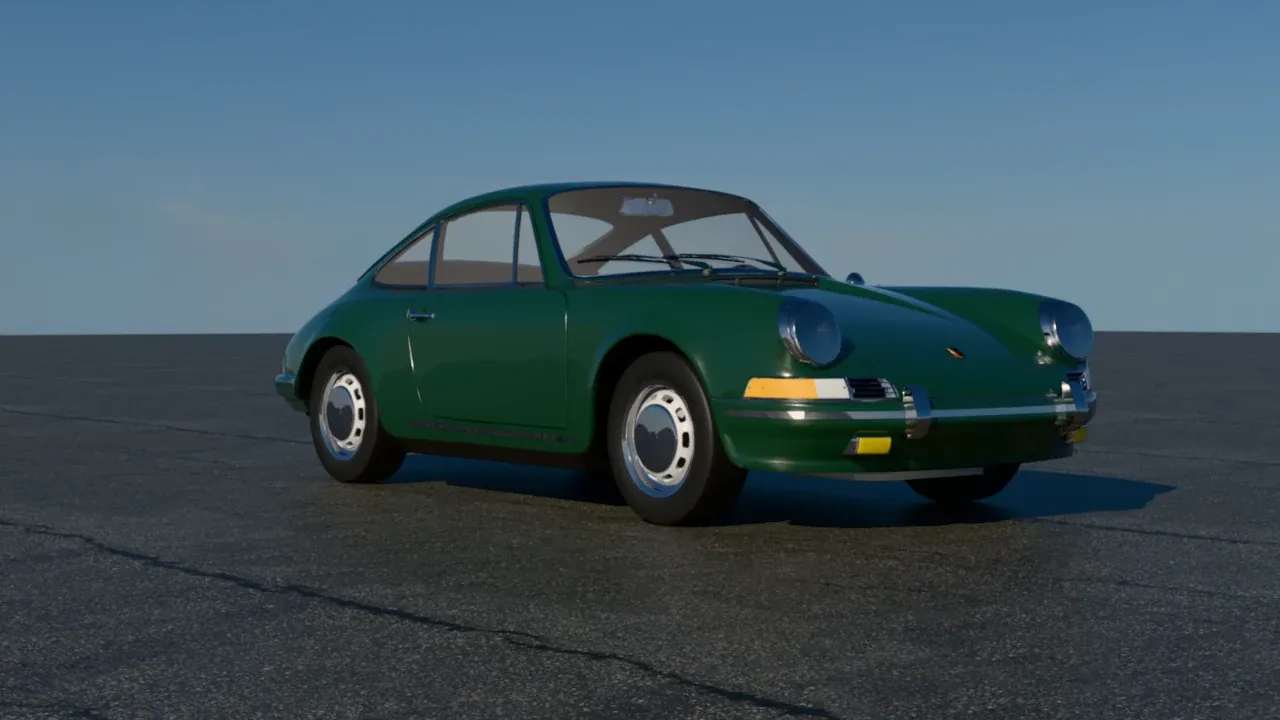
Outside, the sky is the softbox: it’s in every reflection on the car. A sky without buildings or trees (a pure sky HDRI) keeps the reflections clean and matches an empty ground plane.
-
Model the ground: a rectangle of 120 m under the car, with an asphalt texture. The 3 m texture size keeps the cracks at a believable scale.
-
Pick an HDRI with a low sun. Drag a pure sky HDRI from the Asset Manager onto the render; these shots use Poly Haven’s Autumn Field (Pure Sky). A low sun draws long shadows that put the car on the ground, and gives the paint warm highlights on one side and blue sky on the other.
-
Turn the HDRI (Rotation in the Environment tab) until the sun lights the side of the car you show, from slightly in front. The 911 has the sun at 120°.
-
Go low and long. A camera at the height of the car’s headlights (0.6 to 0.9 m) makes a car look powerful, the eye height of 1.6 m makes it look small. Step back and zoom in: a field of view of 30° to 40° (a lens of 50 to 70 mm) keeps the car’s proportions, a wide lens close up stretches its nose.
The Night Shot
Section titled “The Night Shot”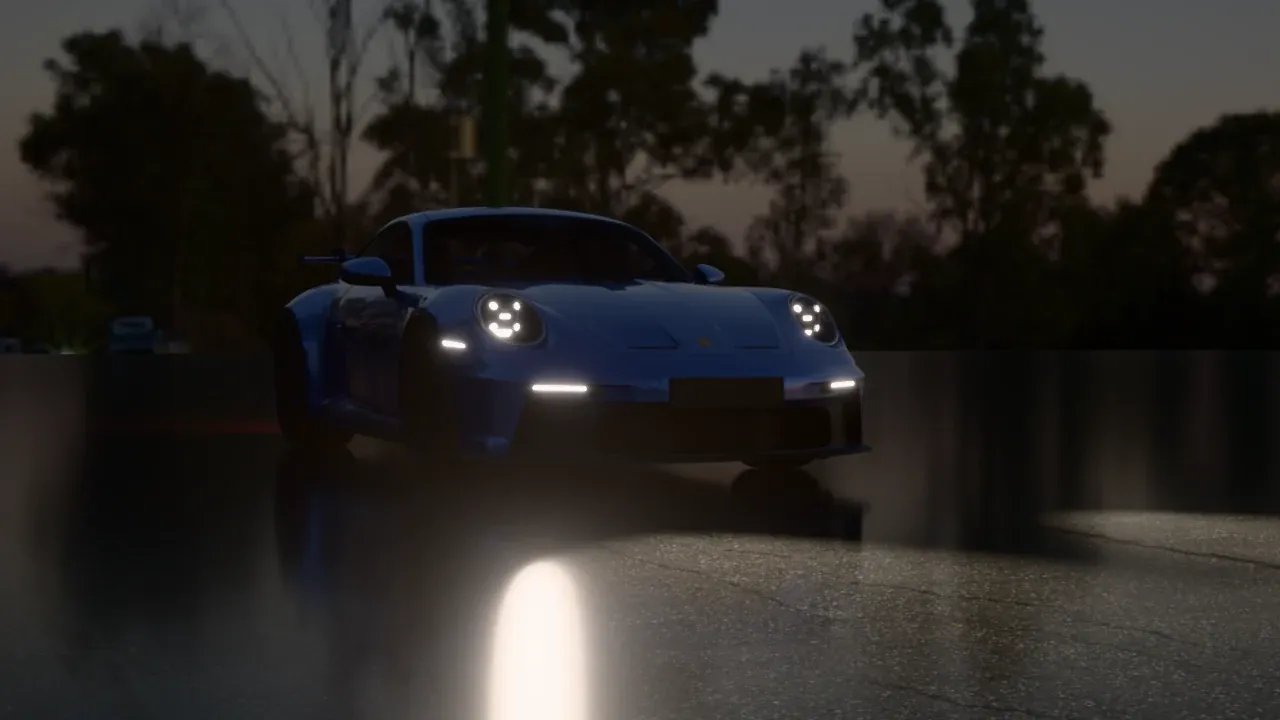
At night, the lamps of the car are the light, and a wet road doubles them. This is the shot from the Lamps section, with three more ingredients:
-
A dim HDRI: Poly Haven’s Highway Bridge Sunset at a Power of 0.1 gives a dark blue sky with the last light at the horizon, and the trees as silhouettes.
-
Wet asphalt: set the Roughness of the asphalt to 0.12, which replaces its roughness map. The road now reflects the lamps and the sky.
-
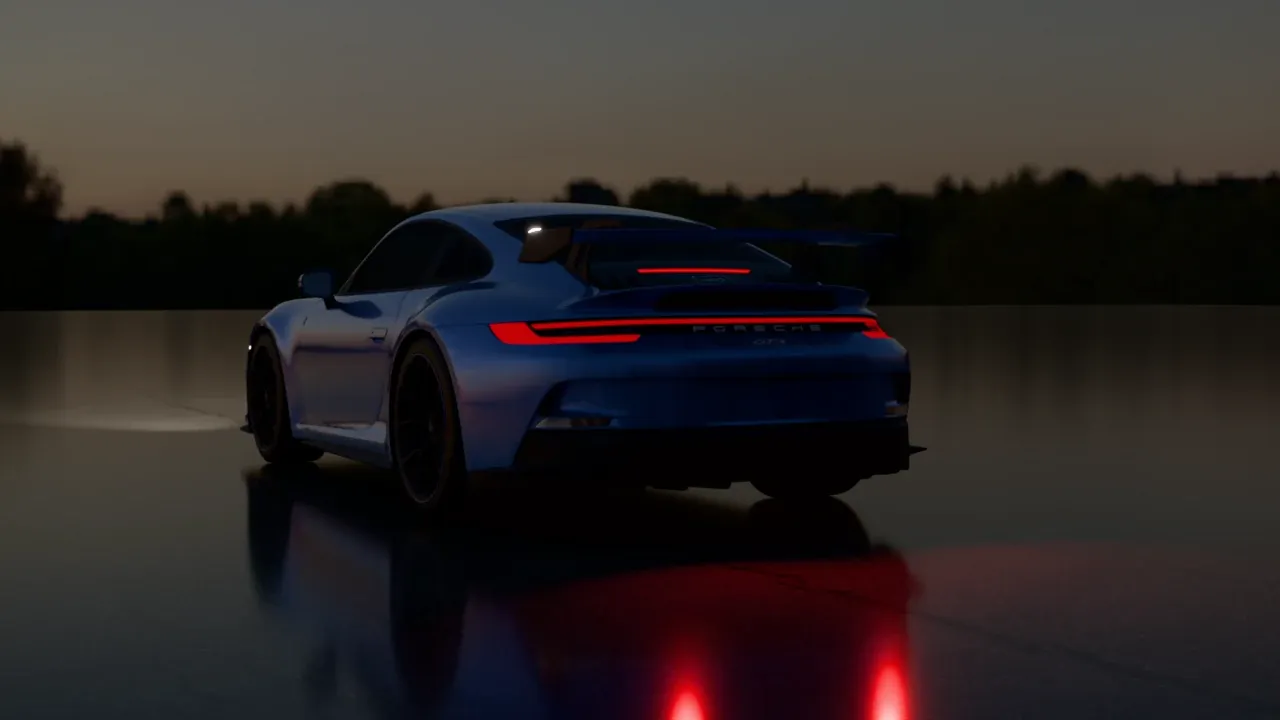
Beams: a spotlight just in front of each headlight, aimed down the road, with a Cone Angle of 24°, a Falloff of 0.8, 5500 K and 600000 lm. Behind the tail lights, a red spotlight aimed at the road behind the car (60°, 12000 lm) throws the red glow on the ground.
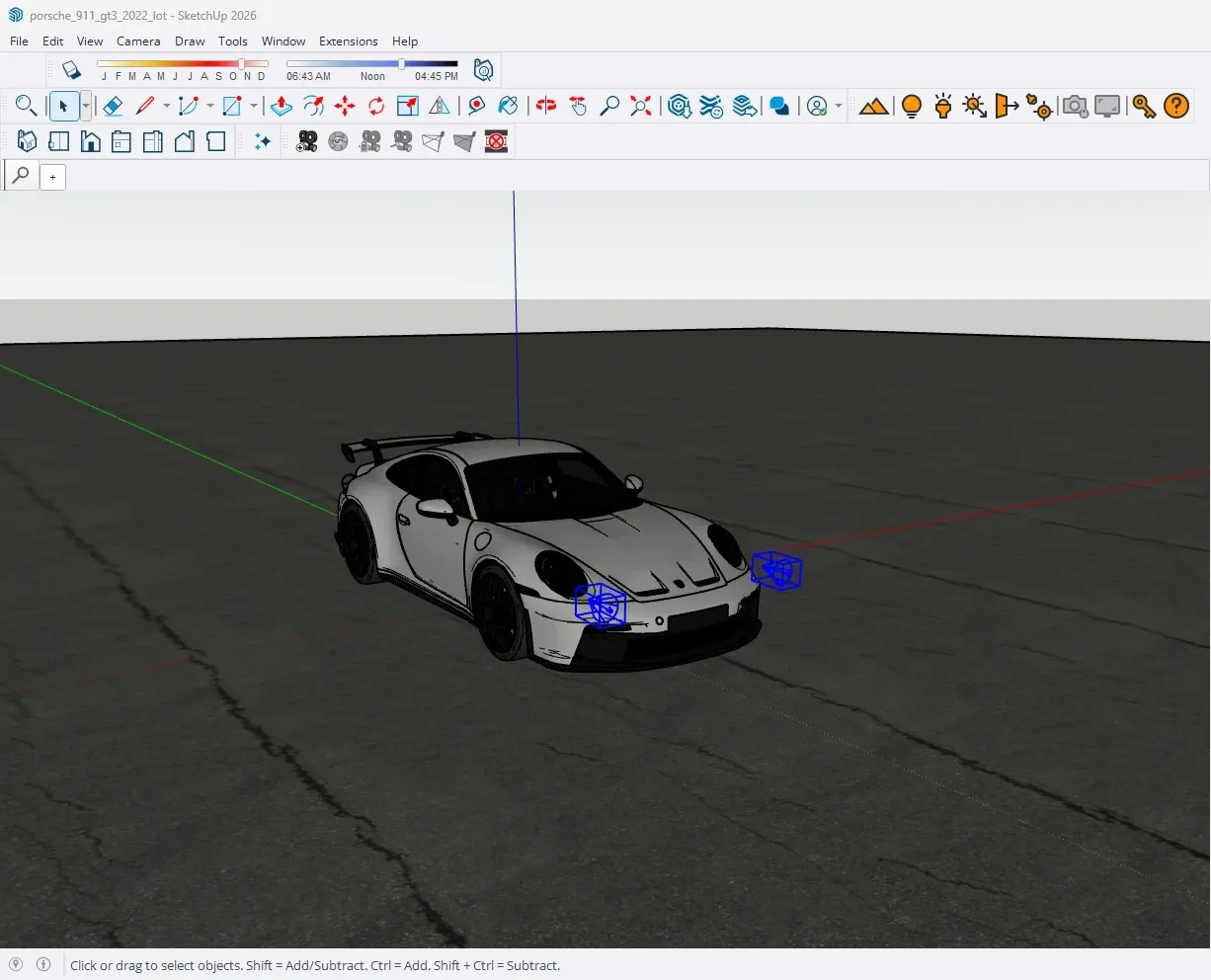
-
Exposure by hand: turn Auto Exposure off and set the Exposure to 0, else auto exposure brightens the night into a dusk. Add Bloom (0.35) and a little Glare (0.12) for the glow of the lamps, and a Vignette (0.3).
Details
Section titled “Details”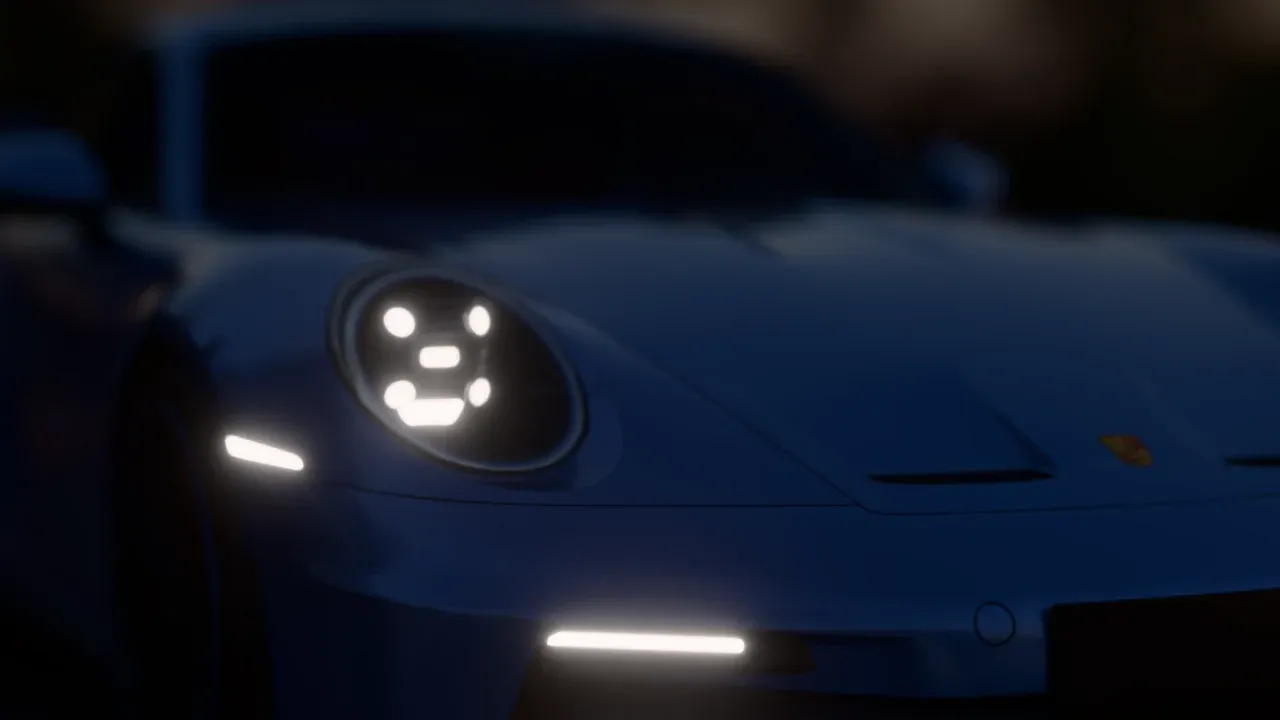
Close-ups show what makes a car: its lamps, its wheels, its badges. They work best with a long lens and depth of field:
- Zoom in instead of moving close. A field of view of 25° to 30° from 2 to 3 m away keeps the curves of the body round.
- Focus on the detail: turn on Depth of Field, turn off Auto Focus and set the Focus Distance to the distance of the detail (the Tape Measure tool tells you). A Blurriness of 0.1 blurs the rest of the car.
- Keep the light of the full shot. A close-up of the headlight at night uses the same scene as the night shot, so it matches it in a series.
Checklist
Section titled “Checklist”- The car is at real size, with its wheels on the ground.
- The paint is Car Paint with a dark color, the chrome is Metal, the glass is Glass with a white or grey color.
- The lamps glow with Fake Emission, the red ones with a low power.
- The lights are where the body reflects them, not only where they light it.
- The camera is low, with a long lens.
- At night, the exposure is set by hand.
Credits
Section titled “Credits”The cars in this guide are 3D Warehouse models by their creators, used under the 3D Warehouse terms:
- 2022 Porsche 911 GT3 by Ghøst. Scaled down to its real size and shown with Rayscaper materials.
- 1964 Porsche 911 by Cartoon, shown with Rayscaper materials and an Irish Green paint.
Download them from the 3D Warehouse to follow along; Rayscaper doesn’t host them. The HDRIs Autumn Field (Pure Sky) and Highway Bridge Sunset and the asphalt texture are CC0 assets from Poly Haven. Porsche and 911 are trademarks of Dr. Ing. h.c. F. Porsche AG; this guide isn’t affiliated with or endorsed by Porsche.