
Coming from Thea Render
If you render with Thea for SketchUp, this guide shows where everything you know from it lives in Rayscaper: the material presets and the layered editors, the Thea lights, the sun, sky and IBL, the Darkroom’s display settings and the render engines.
A lot will feel familiar. Like Thea, Rayscaper is a physically based renderer inside SketchUp: it starts from the colors and textures of your SketchUp materials, takes the sun from SketchUp’s shadow settings, places lights as SketchUp components, and lets you click a surface in the render to edit its material. The differences are in how much you have to decide before the first good image:
- One way of rendering. There is no engine to pick (Presto, Nitro or an unbiased mode) and no switch between interactive and production rendering. The render in the Rayscaper window is the final render: it updates while you model, orbit and change settings, and gets cleaner the longer you leave it alone. You save it when it’s clean.
- Fewer settings. A material is one of five types, each with presets and finishes, and the rest of its settings sit in a collapsed Advanced section. Lights start as real lamps, in lumen.
- A photographic camera without the photographic homework. Exposure is one value in EV, or automatic, instead of ISO, shutter speed and f-number.
The workflow at a glance
Section titled “The workflow at a glance”| In Thea for SketchUp you… | In Rayscaper you… |
|---|---|
| opened the Thea Tool window and the rendering window (Darkroom) | click Start Render: one window with the render and the Scene Editor next to it |
| chose an engine and started interactive or production rendering | render right away: there is one render method, see Rendering |
| picked a material with the Thea cursor or the crosshair in the render, and chose a preset in the Material tab | turn on Material Pick (Ctrl+M), click a surface in the render and choose a material type and finish |
| created a point, spot, IES or projector light from the Lights tab | pick a light tool on the Rayscaper toolbar and place it in SketchUp |
| set up the sun, sky and IBL in the Environment tab | choose a Sky, HDRI or Color environment |
| set the exposure, tone mapping and effects in the Display tab | use the Post Processing section, live on the render |
| set the channels, the animation and the batch in their tabs | render passes, scenes and animations from the File menu |
| dragged materials, models and skies from the content browser | drag materials and HDRIs from the Asset Manager onto the render |
Your first render
Section titled “Your first render”-
Install Rayscaper next to Thea, and open your model. Both are SketchUp extensions and don’t get in each other’s way.
-
Click Start Render on the Rayscaper toolbar. The Rayscaper window opens and renders the current SketchUp view. Every SketchUp material gets a Rayscaper material with the same color, texture and opacity. Thea’s own material settings aren’t read, so this is where you start from.
-
Set up the light outside. A new model starts with Rayscaper’s sky, whose sun follows SketchUp’s Shadows panel, like Thea’s sun does by default. For other light, change the Environment or drag an HDRI from the Asset Manager onto the render.
-
Give the key materials a type: make the windows Glass, the fixtures Metal, and pick a finish for the rest. See Materials.
-
Place your lamps again with Rayscaper’s light tools, see Lights. Thea’s lights don’t light a Rayscaper render.
-
Save the render with File > Save… (Ctrl+S). Denoise on the toolbar is on for a new model and removes the last grain.
Rayscaper saves its settings in the model, next to Thea’s, so the next time you open it, it renders the same way. For a guided first render, watch the Quick Start video.
Materials
Section titled “Materials”Thea for SketchUp has three ways to edit a material: the Presets, the layered Presto editor and the PBR Nitro editor. Rayscaper has one editor, closest to a Thea preset: you choose a material type, the color and texture come from SketchUp, and a Finish or preset sets the rest. Every setting a preset hides is still there, in the Advanced section of the type. Turn on Material Pick in the render window and click a surface, like with Thea’s crosshair, to open its material in the Materials section of the Scene Editor.
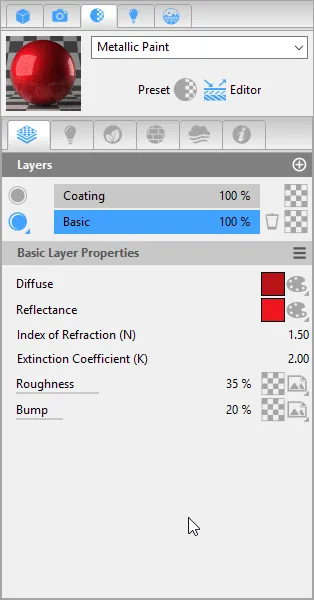
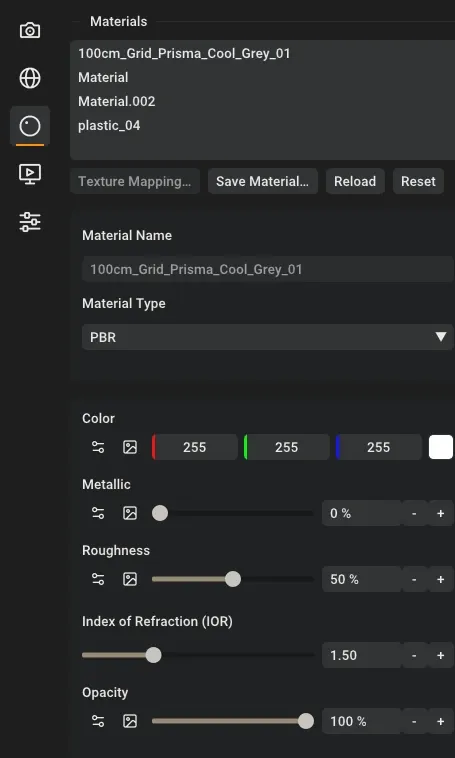
A metallic paint in Thea’s layered editor, a Coating layer on a Basic layer, and Rayscaper’s Materials section: a material type, a finish and a few settings.
| Thea | Rayscaper material | Notes |
|---|---|---|
| Preset: Default | Standard | Every new material is Standard with the Satin finish. Pick Matte for plaster and raw concrete. |
| Nitro: Standard | Standard | Both are metallic/roughness PBR materials, so the same color, roughness, metalness and normal maps fit. |
| Preset: Lacquer, Nitro or Presto Coating | Standard, Lacquered finish | A clear coat on a satin base. Tune the coat under Advanced > Coating. |
| Preset: Ceramic | Standard, Glossy or Lacquered finish | |
| Preset: Mirror | Standard, Mirror finish | |
| Preset: Metal, Colored Metal | Metal | Pick the metal (aluminium, chrome, copper, gold, brass, …); its color is measured. Raise Roughness for brushed metal, and Anisotropy under Advanced. |
| Preset: Car Paint | Car Paint | A base coat with metallic flakes under a clear coat. |
| Preset: Glass | Glass | For objects with thickness: bottles, glasses, aquariums. |
| Preset: Thin Glass, Nitro: Thin film | Glass with Thin on | For window panes modeled as a single face. |
| Preset: Thin Translucent | Standard, Sheer Fabric finish | Or set the Translucency of any Standard material, for lampshades and leaves. |
| Water materials | Water | For pools and ponds, with presets and a depth tint. Water in a glass is Glass with an IOR of 1.33. |
| Preset: Emitter, Emittance component | Any type, with Emission | Its Power is in Watts, its color a color or a temperature. Fake Emission glows without lighting the scene. |
| Clipping, Opacity | Opacity | Use the alpha channel of a PNG to cut out leaves and fences. |
A few things work differently:
- Bump and displacement. Rayscaper uses normal maps for surface detail, see Normal Map. Most texture sites offer a normal map next to the color texture. Bump (height) maps and displacement aren’t supported.
- Layers. Instead of stacking Basic, Glossy, SSS and Coating layers with weights, a Standard material has one layer for each of coating, sheen, translucency, transmission and anisotropy under Advanced. A mix of two materials across a surface is a Mix texture.
- Procedurals. Thea’s procedural textures are Noise, Checkerboard and Mix textures, which work in every setting of a material.
- Ready-made materials. The content browser and Thea’s online repository are the
Asset Manager: Poly Haven’s scanned materials, Rayscaper’s own materials (paints, car
paints, ceramics, fabrics, metals, gems, …) and the materials you save yourself. Drag one onto a surface in the
render. Thea’s
.mat.theafiles can’t be loaded. - Changes in SketchUp. Once Rayscaper has created a material, later changes to the SketchUp material don’t overwrite your Rayscaper settings. Click Reload to take them over, see Working with SketchUp Materials.
- Not available: subsurface scattering through thick objects (Thea’s SSS for wax, skin and marble), media and the Cloud preset, dispersion (the Abbe number), back-face materials, the shadow catcher, fur and the random color texture.
Lights
Section titled “Lights”Thea’s lights are SketchUp components that you create from the Lights tab with two clicks, the light and its target. Rayscaper’s lights are SketchUp components too, with a tool per type on the Rayscaper toolbar: click a reference point, then the light’s position, then (for all but the point light) where it points. SketchUp’s inferences, arrow-key axis locks and the Measurements box all work. See How Light Placement Works. Rayscaper doesn’t read Thea’s light components, so place your lamps again. If the icons of Thea’s lights show up in the render, put them on a tag and hide it.
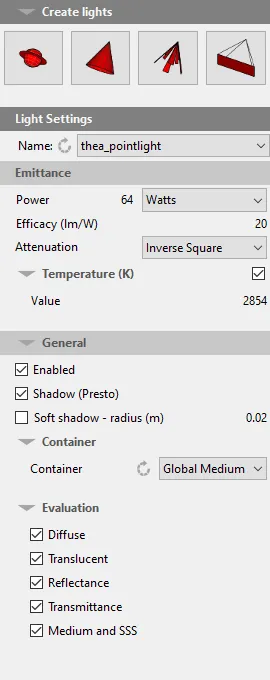
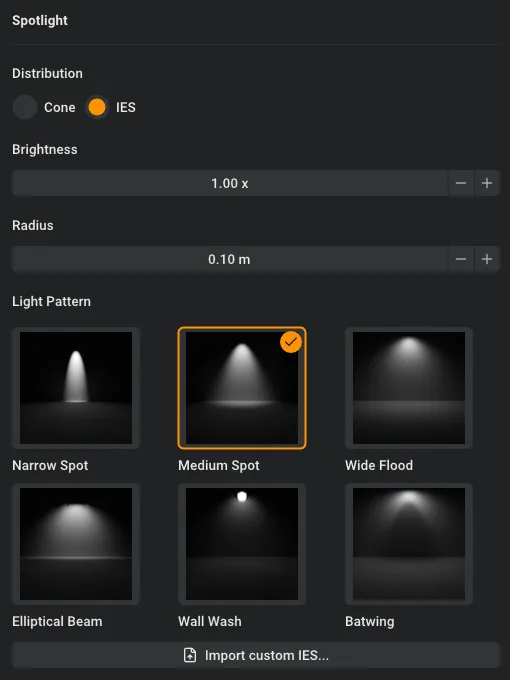
Thea’s Lights tab with a point light, and Rayscaper’s Spotlight settings, here with a built-in IES pattern.
| Thea light | Rayscaper light |
|---|---|
| Point light (omni) | Point Light |
| Spot light | Spotlight, with Distribution set to Cone |
| IES light | Spotlight, with Distribution set to IES. Import your .ies files with Import custom IES…, or use a built-in pattern. |
| Projector light | No counterpart. Use a Spotlight, or an Area Light for soft, even light. |
| Emitter material on a face | An Area Light, or a material with Emission. An area light renders with less noise. |
| Sun | The sun of the sky, and optionally a Directional Light that follows SketchUp’s sun too. |
How the settings translate:
- Power in lumen carries over: Rayscaper’s point lights, spotlights and area lights take their intensity in lumen too, and its presets (a 60 W bulb, an LED downlight, an LED panel, the sun) give you real values to start from. For a Thea light in Watts, multiply the Watts by its Efficacy to get its lumen: 100 W at 10 lm/W is 1000 lm. See Intensity Units.
- Temperature (K) is the same: set Color to a temperature in Kelvin. 2700-3000 K is the warm white of most interior lights.
- Soft shadow radius is Radius: a larger light gives softer shadows. A few centimeters is realistic for a bulb.
- Hot spot and Fall off become Cone Angle (half the beam width) and Falloff (how soft the edge is, 0 to 1).
- Attenuation has no setting: every light falls off with the inverse square of the distance, like real light.
- Shadow and Evaluation have no counterpart: every Rayscaper light casts physically correct shadows and lights every material.
- Relight has no counterpart, but changing a light takes effect in the live render at once. Keep the versions you like in the render history to compare them.
- The shape of a selected light shows in the SketchUp viewport while Rayscaper renders: the cone of a spotlight, the radius of a point light. See Seeing a Light’s Shape in SketchUp.
Environment
Section titled “Environment”Thea’s Environment tab is the Environment section of Rayscaper’s Scene Editor. See Environments.
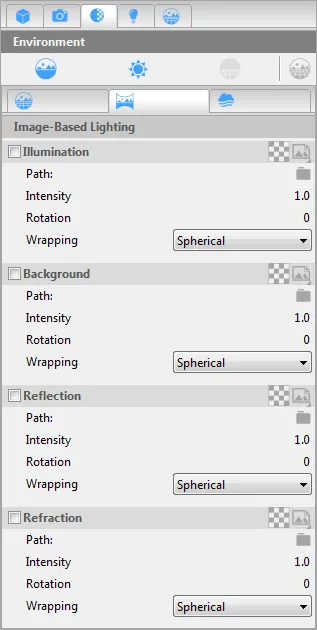
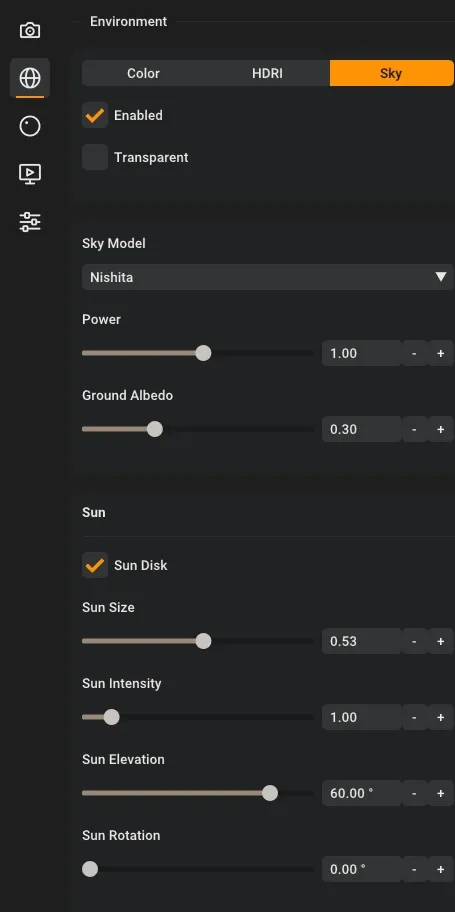
Thea’s IBL with its four image slots, and Rayscaper’s Environment section with the sky and its sun.
| Thea | Rayscaper |
|---|---|
| Physical sky and sun | Sky, with a sun that follows SketchUp’s Shadows panel. Instead of the turbidity, it has a Haze slider. |
| Manual sun, or Use SketchUp Sun position off | Turn off Extensions > Rayscaper > Use SketchUp Sun for Sky and set Sun Elevation and Sun Rotation. |
Sky presets (.sky.thea) | The presets of the sky, from a clear midday to a night. |
| IBL | HDRI, from an .hdr or .exr file, with Power and Rotation. The Asset Manager has the whole Poly Haven HDRI library. One image lights the scene and is the background, its reflections and refractions; Thea’s separate Background, Reflection and Refraction slots have no counterpart. |
| IBL with a color | Color. |
| Ground plane | Ground fills the view below the horizon. To catch shadows and reflections, model a ground surface. |
| Background removed, for compositing | Turn on Transparent: the environment still lights the scene, the background of the saved PNG is transparent. |
| Global medium, fog | Not supported. |
Rendering
Section titled “Rendering”Thea makes you choose first: Presto or Nitro, interactive or production, and the tracing depth, time limit and passes of the engine. Rayscaper has one way of rendering, physically based global illumination, and it handles interiors, exteriors, sunlight, IES lights and emitting materials alike.
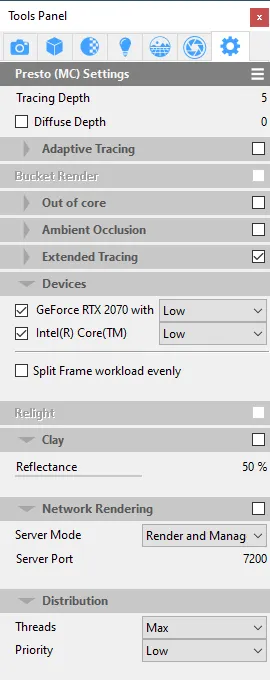
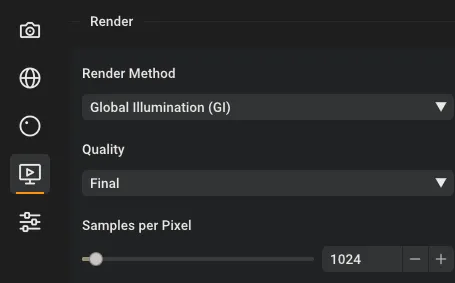
The settings of Thea’s Presto engine, and Rayscaper’s Render section: one method, rendering until it reaches the samples per pixel.
- Engines and devices. There is no engine to choose. Rayscaper renders on the CPU, or on an NVIDIA GPU that you turn on in File > Settings…; on a Mac it renders on the GPU.
- Interactive and production rendering are the same render. It runs until it reaches the Samples per Pixel you set (1024 by default), like Thea’s pass limit, and you can save it at any moment before that. With Denoise on, a render is often clean after a few hundred samples. See Samples per Pixel.
- Tracing depth, diffuse depth and clamp level are the Diffuse, Reflection and Transmission Bounces, Transparent Layers and Highlight Clamp under Advanced. The Quality presets set them for you; raise only what a scene needs.
- Interactive rendering in the SketchUp view isn’t needed: the Rayscaper window follows the SketchUp camera, so you frame the shot in SketchUp and see the render next to it. Click Lock Camera on the Rayscaper toolbar to keep the shot while you look around. While Rayscaper renders, an orange rectangle in the SketchUp view shows what’s in the render, with an optional composition guide like Thea’s rule of thirds.
- Region rendering isn’t available: zoom in on the render window to judge the details.
- Network rendering (Thea Node) isn’t available: Rayscaper renders on one computer.
Camera
Section titled “Camera”Thea’s camera tab is the Camera section of the Scene Editor. See Cameras.
| Thea | Rayscaper |
|---|---|
| Resolution, aspect ratio | Resolution |
| Depth of field: f-number or sharpness | Depth of Field: Blurriness sets the amount of blur |
| Auto focus, focus distance with Set | Autofocus, or Focal Distance with Camera Focus Pick (Ctrl+F): click what should be sharp |
| Standard projection, perspective or parallel | Perspective and Orthographic |
| Spherical projection | Panoramic, see the 360° Panoramas guide |
| Z-clipping, near distance | Near Clip Depth, or Near Clip Depth Pick (Ctrl+J) to click the distance in the render |
| Section cuts | Not rendered yet. Use Near Clip Depth to look into a room, or hide the walls in front with a SketchUp tag. |
| Cylindrical projection, stereoscopic rendering, motion blur | Not available. |
Post processing
Section titled “Post processing”Thea’s Display settings are the Post Processing section, and like the Darkroom they work on the high-dynamic-range render, so you can change them after the render is done without rendering again. See Post Processing.
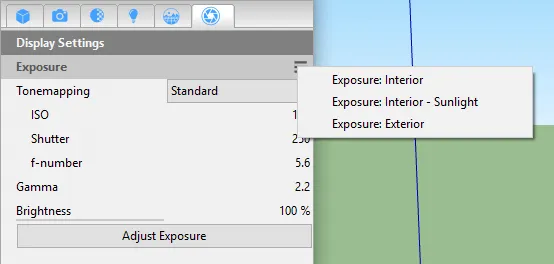
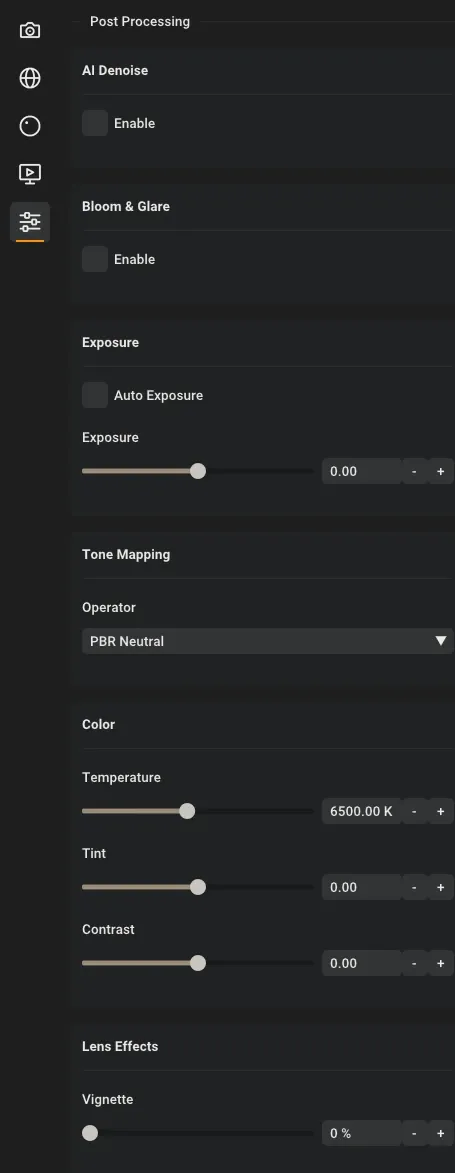
Thea’s exposure with ISO, shutter and f-number, and Rayscaper’s Post Processing section.
| Thea | Rayscaper |
|---|---|
| ISO, shutter speed and f-number | Exposure in EV stops, or Auto Exposure, which is on for a new model and keeps the image readable while you change the lights |
| Standard and Filmic tone mapping, highlights and shadows | Tone Mapping: PBR Neutral, ACES Filmic, Filmic and more, and Contrast under Color |
| White balance | Temperature and Tint under Color |
| Vignetting | Vignette under Lens Effects |
| Glare | Bloom & Glare |
| NVIDIA and Intel denoisers | AI Denoise |
Channels, animation and batch rendering
Section titled “Channels, animation and batch rendering”- Channels. Rayscaper’s passes are the diagnostic render methods: Albedo, Ambient Occlusion, Geometric and Shading Normals, Material ID, Object ID and more. File > Render Scenes… saves them next to every render, see Passes. With a license, save the render as an HDR EXR for compositing.
- Batch rendering is File > Render Scenes…: it renders the SketchUp scenes you check one after the other, each with its own tags, hidden objects, shadows and camera, and names each image after its scene. See Render Several Scenes.
- Animation: Rayscaper renders animations from your SketchUp scenes, including the sun moving between scenes, and on Windows encodes the frames into a video. See the Animation Guide. It also renders the clips of Fredo6 Animator.
- Proxies and scattering: Rayscaper has no proxies. Its Scatter covers terrain with grass, plants and trees, which render in full while SketchUp shows a light preview, and it renders Skatter compositions like Thea does.
Licensing
Section titled “Licensing”Thea for SketchUp is a lease, renewed every year or every three years. A Rayscaper license is a one-time payment for a perpetual license, with a year of updates, and it keeps working after that. The free version has no time limit: its renders inside SketchUp are limited to 1280 pixels on the longest edge, carry a watermark and can’t be used commercially, so you can try Rayscaper on your own projects before you buy. See the Licensing FAQ, and Rayscaper vs Thea Render for a side-by-side comparison.
Missing something you relied on in Thea? Let us know, it helps us decide what to build next.
Credits
Section titled “Credits”The Thea for SketchUp screenshots come from the Thea for SketchUp v3 documentation, as archived by the Internet Archive. Thea Render is a product of Altair, part of Siemens.