
Installation FAQ
Which SketchUp versions does Rayscaper support?
Section titled “Which SketchUp versions does Rayscaper support?”SketchUp 2024, 2025 and 2026 on Windows. Rayscaper supports the three most recent SketchUp releases. See the system requirements for the hardware you need.
Does Rayscaper run on macOS?
Section titled “Does Rayscaper run on macOS?”Not yet. macOS support is planned, see the Roadmap.
How do I update Rayscaper?
Section titled “How do I update Rayscaper?”Install the new version over the old one: download the new rbz file and install it via the SketchUp Extension Manager, then restart SketchUp. You don’t need to uninstall the old version, and your settings, saved materials and downloaded assets are kept. See Upgrading to a newer version.
How do I uninstall Rayscaper?
Section titled “How do I uninstall Rayscaper?”Open the SketchUp Extension Manager, go to the Manage tab and click Uninstall next to Rayscaper. See Uninstalling Rayscaper, which also explains how to remove the remaining files. Your license isn’t affected.
How can I install the SketchUcation Tools extension?
Section titled “How can I install the SketchUcation Tools extension?”Step 1: First, we need to download the extension for SketchUcation: download link.
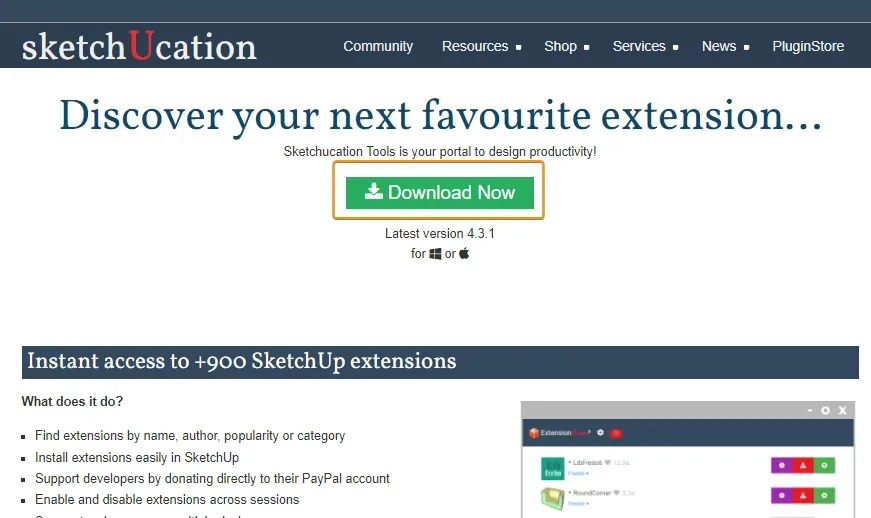
Step 2: After downloading the extension (SketchUcationTools.rbz), you need to install it in SketchUp via the
extension manager (Menu > Extensions > Extension Manager).
Step 3: Restart SketchUp. After the restart, the Show License Dialog button appears on the Rayscaper toolbar.
- If you don’t see the toolbar, look at this section of the User Interface documentation.
- If you don’t have a valid license, look at this FAQ question on how to get a license.
What version of Rayscaper am I running?
Section titled “What version of Rayscaper am I running?”The Rayscaper version is shown in multiple places.
Method 1: Via the title bar
Section titled “Method 1: Via the title bar”If you have the Rayscaper window open, you can see the version in the title bar.

Method 2: Via the SketchUp extension manager
Section titled “Method 2: Via the SketchUp extension manager”You can check the Rayscaper version in the SketchUp extension manager (SketchUp Menu: Extensions > Extension Manager), and open the item for Rayscaper:

Method 3: Via the Rayscaper About dialog
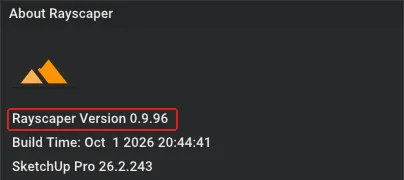
Section titled “Method 3: Via the Rayscaper About dialog”Finally, you can also see the Rayscaper version in the About dialog. In the Rayscaper window, go to Help > About Rayscaper…:
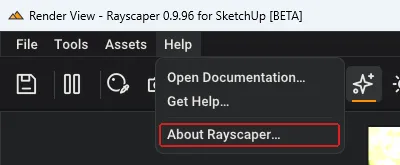
The version is on the first line:
Why is there no license button, or why are my renders still watermarked?
Section titled “Why is there no license button, or why are my renders still watermarked?”Rayscaper uses the SketchUcation Tools extension to manage licenses. Rayscaper loads and renders without it, but the Show License Dialog button is missing from the toolbar and your renders stay watermarked, even if you’ve bought a license.
To fix this, install the SketchUcation Tools extension following these instructions, restart SketchUp and activate your license via Show License Dialog.